
The Items tab contains your item database. From here, you can:
- Create new items
- Edit existing items (manually or in batch-style via spreadsheet/CSV import)
Before adding items manually, it is recommended to first define item attribute data (e.g., categories, locations, or other attributes). These will appear as drop-down options in each item record. See the Setup tab section for detailed instructions.
Users can customize the item grid.
 icon- Adjust the display of columns
- Hide Columns icon
 - Toggle column visibility
 - Reorder Columns- Drag and drop field names to change their order.
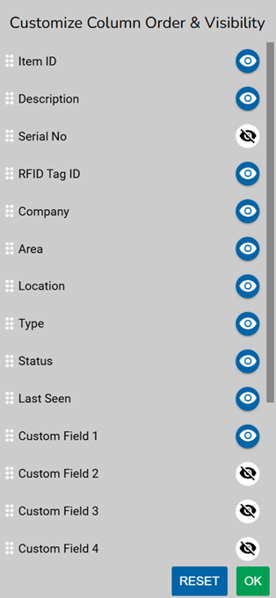
Note: Grid customizations are stored per browser. Your changes will not affect other users’ views.
Creating, Deleting and Editing Items
The Items tab allows you to create, copy, edit, delete and batch import items in your RedBeam database.
Creating Items
To create an item manually:
- Click the New Item Button

- Enter the Item ID- the unique identifier for each item
- Can be alphanumeric up to 100 characters
- Most organizations opt for short numeric values.
- Fill in any additional item information as needed
- Click Save to add the item to the database
Copying an Item
To duplicate an existing item’s metadata, select the item and click the Copy button. Make any necessary edits, then click Save.
Editing Items
To edit an existing item, click its record in the grid. Use the Search icon to quickly locate items. Changes are saved when you click Save.
Deleting Items
Select the item you wish to delete and click the Delete button. A confirmation message will appear before the deletion is finalized.
Batch Import and Updates
RedBeam allows you to create or update multiple items at once using a spreadsheet or CSV file:
- Click the Import icon
 and select your file.
 - The import tool maps your file’s column headings to RedBeam fields
- If a column does not match, a red error message appears
- You can exclude the column or manually map it using the edit icon

- Click Import once all columns are mapped.
- RedBeam displays any records that failed to import and explains why
- You can download a file listing failed records with detailed error messages.
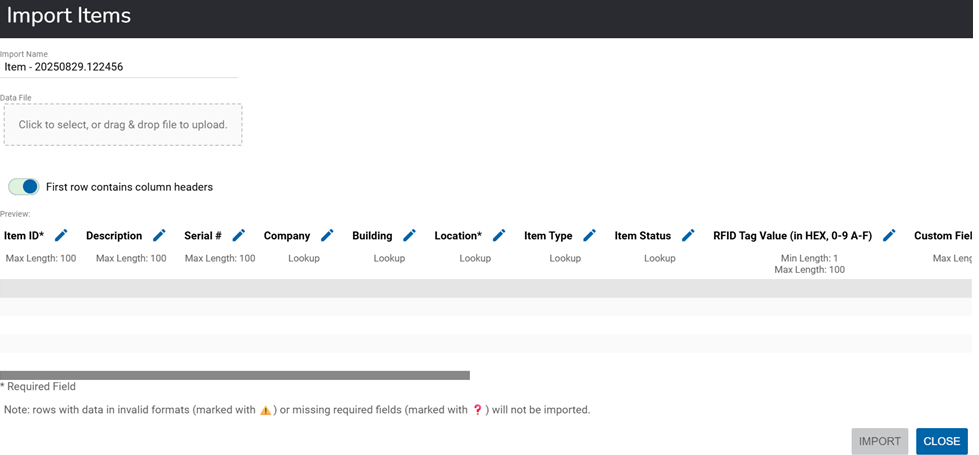
Note: Batch importing will never duplicate or delete existing data. It only creates new items or updates existing ones.
Auto Add
RedBeam RFID can automatically add items to the system when an RFID tag is read.
- During setup, the system can be configured to recognize tags with a specific prefix.
- When a matching tag is detected, a new item is created in the Items list.
- The Item ID is automatically set to match the Tag ID.
- Additional attributes can be added or updated later once the item is in the system.
Details
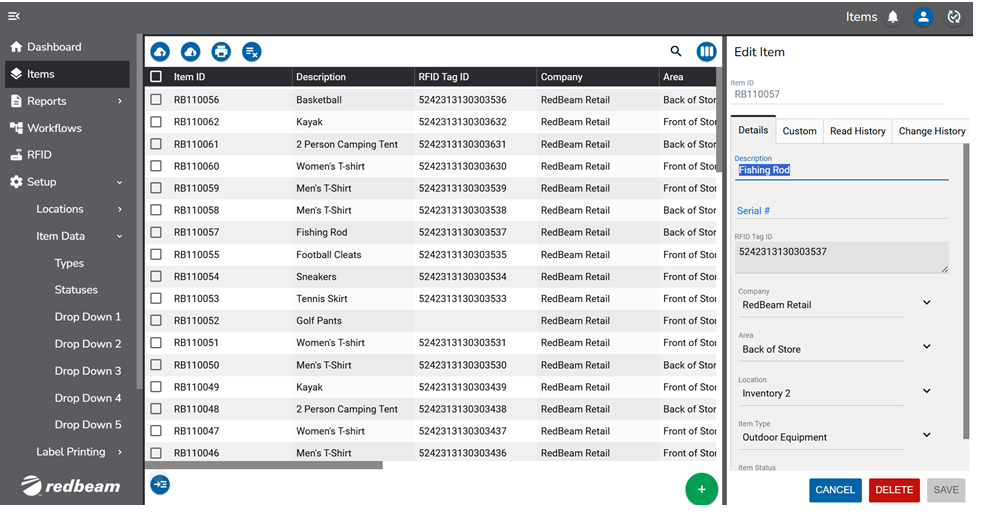
Items in RedBeam RFID can be defined by multiple attributes. The standard attributes include:
- Item ID (also known as Asset ID) – A unique identifier for the item. It does not need to match the Tag ID.
- Description – Open-text field for describing the item.
- Serial # – The item’s serial number.
- RFID Tag ID – The EPC information from the RFID tag, displayed in Hex, ASCII, or SGTIN depending on the system configuration.
- Company* – Part of a three-tier hierarchy (Company → Building → Location).
- Building* – Associated with a Company; see hierarchy note below.
- Location* – Associated with a Building; see hierarchy note below.
- Item Type – Categorizes the item by type or function.
- Item Status – Categorizes the item based on its current condition or state.
- Custom Attributes – If enabled, additional fields appear under the Custom tab. See the Custom Fields section for details.
* Hierarchy Note: Company, Building, and Location form a nested structure in which a Location belongs to a Building, and a Building belongs to a Company. Refer to the Setup section for more details.
*GPS Coordinates will be enabled for specific use-cases such as Yard Tracking.
Item Location History Tab
The Location History tab lets you view each instance an RFID tag was read, showing the time, location, and the device that recorded the read.
Item Audti History Tab
The Audit History enables users to view the entire history of location changes for a given Item as well as any status changes.