
If you are setting up a Zebra ZT411 printer for the first time, begin by performing two calibrations in order:
Note: Follow Zebra’s official instructions for these calibrations before proceeding. Once both are complete, continue with the steps below to connect your printer to RedBeam.
Phase 1: Hardware Setup
Before labels can be printed from RedBeam, the printer must be connected to your network and assigned an IP address.
- Load RFID tags into your Zebra printer.
- Connect a network cable to the rear of the printer and plug the other end into an available port on your network.
- Connect the power adapter to the printer and plug it into an available AC outlet.
- Power pm the printer by pressing and holding the Power button for ~5 seconds, then release.
- Once the printer finishes powering on, press and hold the Feed and Cancel buttons for two seconds, then release.
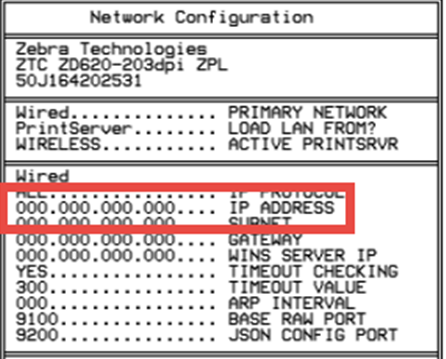
- The printer will print a configuration page showing its IP Address.
- By default, new printers obtain an IP address via DHCP.
Phase 2: Install Zebra Browser Print Utility
6. Download Zebra Browser Print for Windows (zebra-browser-print-windows-v131445.exe).
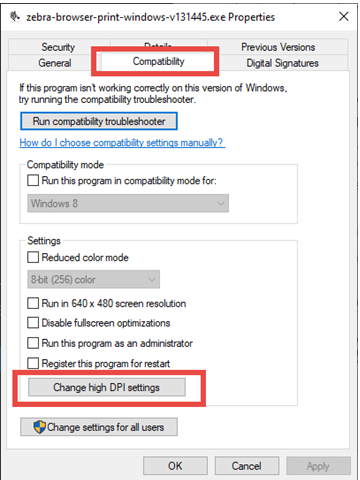
7. Right-click the downloaded file and select Properties > Compatibility > Change high DPI settings.
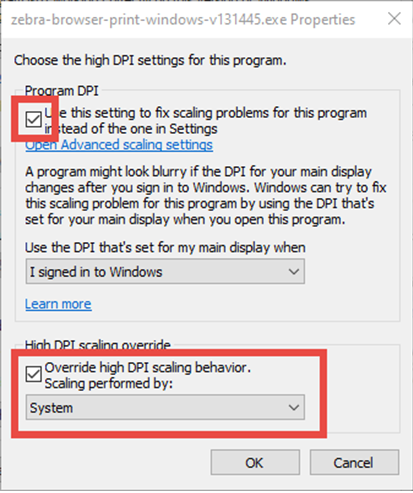
8. Check both boxes, select
System from the dropdown, then click OK twice.
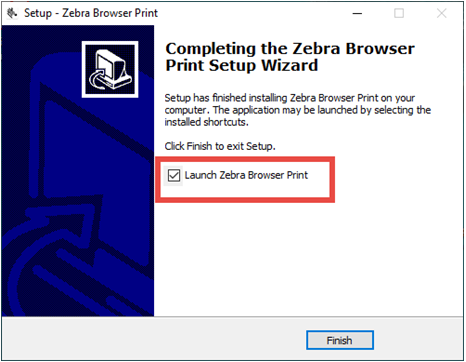
- Keep the box checked for Launch Zebra Browser Print before clicking Finish.
10. Accept the security prompt when asked.
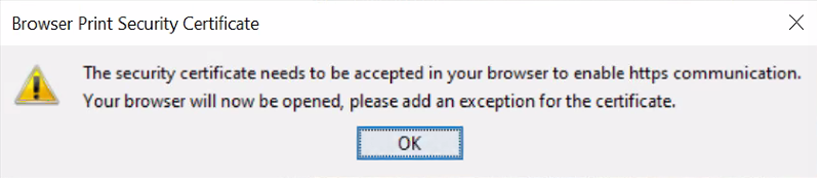
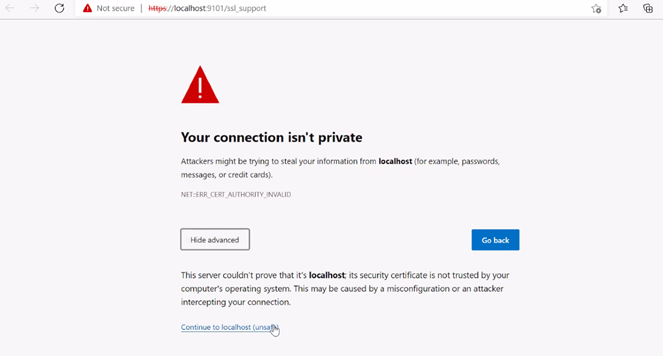
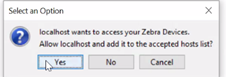
11. If your browser shows “Connection isn’t private,” click Advanced → Continue to localhost.
Phase 3: Configure the Printer in Browser Print
13. In your Windows task tray, click the Browser Print icon.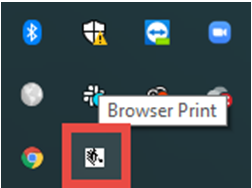
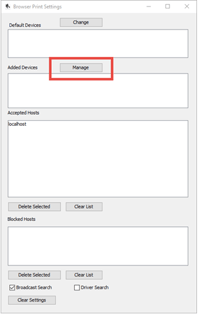
15. Enter a printer name (this is how it will appear in RedBeam)
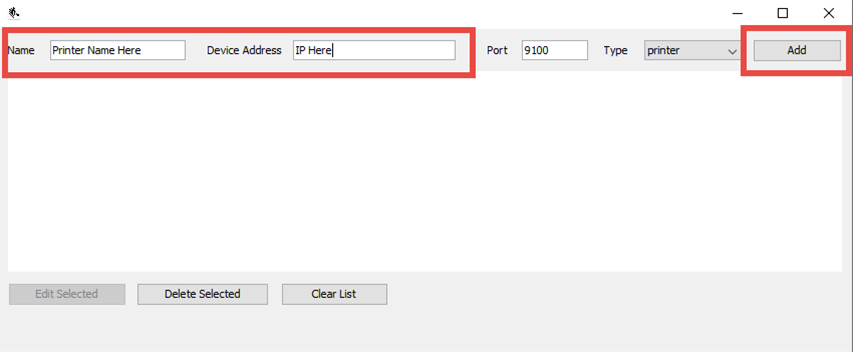
16. Enter a printer’s IP Address (from step 5) in Device Address, then click Add.
Phase 4: Print Labels from RedBeam
17. Log in to your RedBeam account and go to the Items page.
18. Select one or more assets by checking the box.
19. click the Printer  icon.
icon.
20. Choose your Zebra printer from the dropdown list.
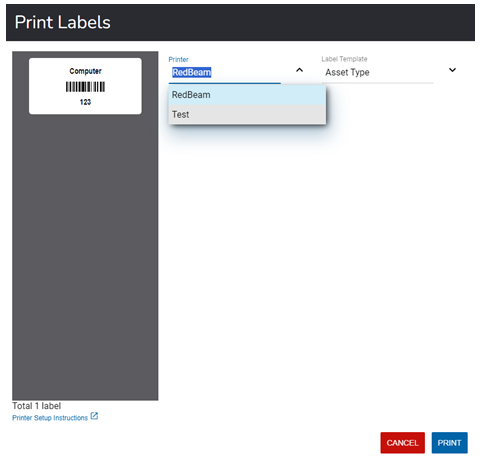
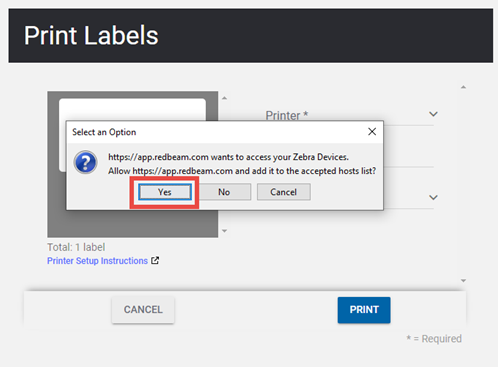
Your Zebra ZT411 printer is now fully configured and ready to print labels from RedBeam.