
RedBeam automatically generates reports. By default, the system includes three reports:
- Items Report
- Item Location History Report
- Item Updates Report
- All reports support:
- Filtering and saving filters
- Customizing column order and visibility
- Exporting data
Filters
If you frequently use the same filtering criteria, you can save personal filters using the Save Filter ( ) icon.
Admin users can save shared filters for all account users using the Save Shared Filter icon  .
.
To save a filter:
- Select your filtering criteria in the Filter By Pane.
- Click the appropriate icon (personal or shared).
- Name the saved filter.
Access saved filters via the Saved Filters Pane. Delete a saved filter by selecting it and clicking the Delete ( ) icon.
Customizing the Report
Use the Edit Grid icon  to adjust your report view. Hide or show columns with the ico
 n, and reorder columns by dragging the field names.
Note: Grid customizations are per-browser; your changes do not affect other users.
Exporting Data
Export report data using the  icon. Exported files will reflect the current column order, column visibility and filters configured in the grid.
Items Report
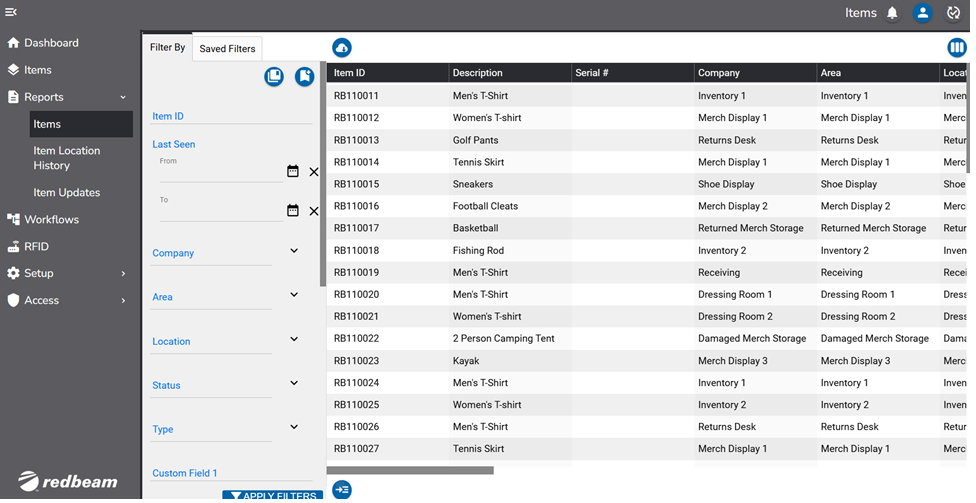
The Items Report is a snapshot of each item and their current and last scene location. The report can be filtered by selection or inputting the:
- Item ID
- Last Seen Date range
- Company
- Building
- Location
- Status
- Type
- Any defined custom fields
The report can be exported by selecting the download button ( ) and will be exported as a CSV file.
Item Location History Report
View every tag movement in the Item Location History Report. This report can be filtered by the same criteria as the Items Report with the addition of Serial Number and RFID Tag ID.
The report can be exported by selecting the download button ( ) and will be exported as a CSV file.
Item Updates Report
The Item Updates Report allows users to view each time items were edited. This report can be filtered by Item ID, the User who made the change, date range, Location, Status and Type.