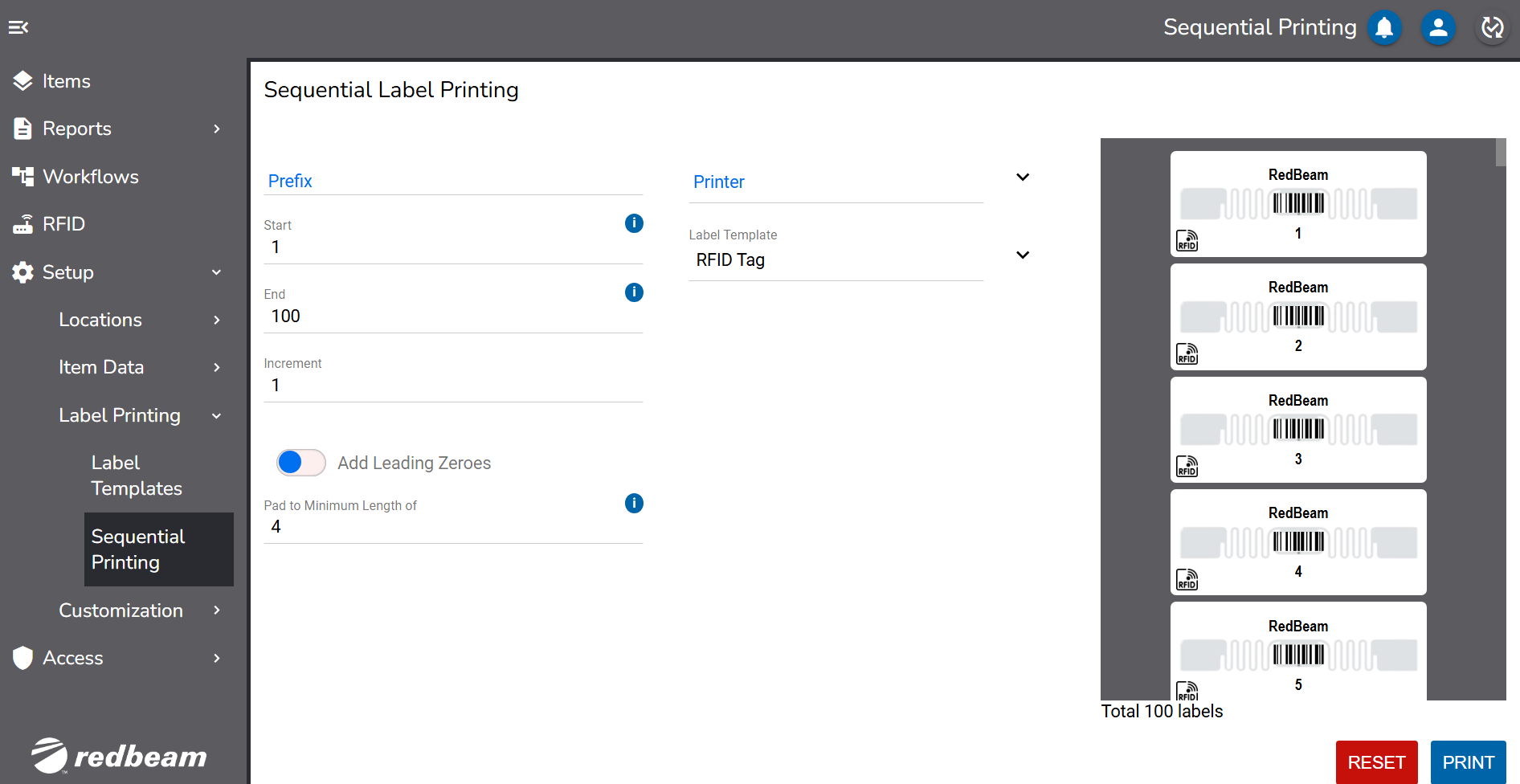
It is common for users to implement an tracking system for the first time to start from scratch without tags or Item IDs.
If this is the case, a great first step is to print and encode a series of sequential labels.
To print sequential labels from the Sequential Printing screen, enter the starting number (i.e. 100) in the Start field and the ending number (i.e. 199) in the End field. Then select a Printer and a Label Template. A preview of the labels will be displayed. Click Print to print the labels.
There are several other options to choose from when printing sequentially.
To add a prefix to all the labels being printed (i.e. ABC), enter the prefix in the Prefix field. Labels starting at 100 will print as ABC100, ABC101 and so on.
The increment can be changed to something other than 1 by changing the value in the Increment field. When this value is 1, labels starting at 100 will increase one at a time (i.e. 100, 101, etc.). If this value is changed to 2, as an example, the labels will increase 2 at a time (i.e. 100, 102, etc.).
To keep asset labels all the same number of digits, enter the number of digits desired in the Pad to Maximum Length of field. If this value is 4, as an example, labels starting at 100 will print as 0100, 0101, etc.