
Workflows in RedBeam allow you to set up custom “if-then statements” that automatically trigger actions. While RFID reads capture what, when, and where, workflows apply business logic to the data, enabling automated responses and updates.
Creating a Workflow
- Click on the green plus button
 in the bottom left corner.
 - Give your workflow a name and description.
- Use the Enable/Disable toggle to activate or deactivate the workflow at any time.
Defining the “If” Statement
The “If” portion of a workflow specifies which items trigger an action and under what conditions.
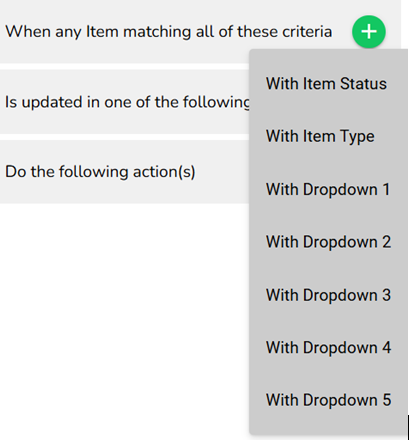
What Type of Item
- Click the green plus button to select specific items that will trigger the workflow
What is Updated
- Specify the update that triggers the worfklow such as when a tag enters or exits a location.
Defining the “Then” Action
After setting the trigger conditions, define the action(s) to execute:
- Send an Email
- Update an Item Field
- Activate GPO (Light or Alarm)
- Send a RESTful Http message (notification to a custom endpoint)
- Forward over MQTT
Defining Variables
When sending an Email or a RESTful Http message, you can include dynamic variables in the message body:
- – Item ID
- – The time of the read.
- – The location where the Item was read.
- – Tag ID’s Hex Value
Email Options: Enter one or more email addresses in the Enter an email address here field, separated by commas.