![RedBeam Logo White - HubSpot.png]](https://support.redbeam.com/hs-fs/hubfs/RedBeam%20Logo%20White%20-%20HubSpot.png?height=40&name=RedBeam%20Logo%20White%20-%20HubSpot.png)
The Workflows module allows administrators to create custom "if-then" automation rules that trigger real-time actions based on system events or RFID read activity. While RFID readers capture what, when, and where an asset was detected, workflows apply business logic to that data, automating notifications, status changes, physical hardware signals, and third-party webhooks without manual intervention.
Creating a Workflow
- Navigate to Workflows and click the + button in the action bar.
- Enter a descriptive Workflow Name and Description.

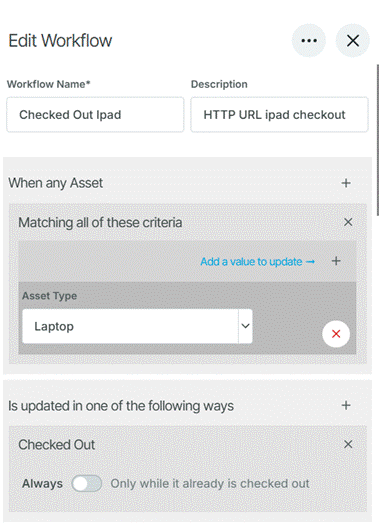
Configuring Trigger Conditions ("IF" Statement) The "IF" section establishes the specific criteria and events required to activate the workflow:
- Item Selection: Click + to specify which asset categories, types, or individual items are evaluated by the rule.
- Update / Event Type: Define the exact trigger condition (e.g., when a tag enters or exits a designated location).
Defining Automated Actions ("THEN" Action) Once trigger conditions are met, define one or more automated actions to execute:
- Send an Email: Automatically dispatch notification emails to single or multiple recipients (separate email addresses with commas).
- Update an Asset Field: Automatically update specific database attributes (e.g., changing an asset's status or condition).
- Activate GPO: Send a General-Purpose Output (GPO) signal to trigger external physical hardware, such as stack lights or audible alarms.
- Send RESTful HTTP Message: Post a JSON payload or notification to a custom REST API endpoint.
- Forward over MQTT: Publish event telemetry to an MQTT broker for real-time IoT integration.
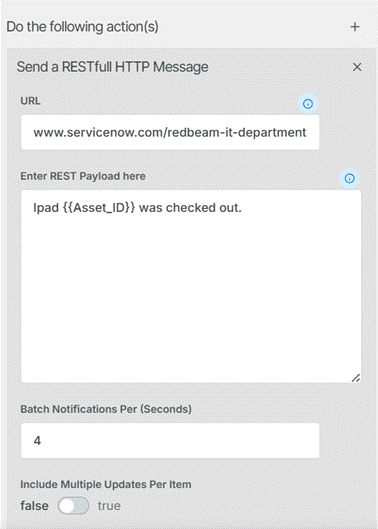
Using Dynamic Message Variables When configuring Send an Email or RESTful HTTP Message actions, insert dynamic variables into the message body to populate real-time event data.